 Follow on Substack

There are several ways to translate a web page, and I will demonstrate a universal method that should work on your computer, tablet, and mobile phone. The technique I describe should also work on your Windows or IOS (Apple) device.
Steps to Translate A Web Page
For this demonstration, we will use the official UK Government’s Ukraine Sponsorship Scheme (Homes for Ukraine) page, which, as of the date of this article’s publication, was only available in English. Go to this web page now.
Please note that all screenshots shown below can be clicked or tapped to display a larger image. If you are viewing this page on a narrow screen, for instance on your mobile phone, you will see larger photos if you hold your device horizontally.
Once the web page is displayed in your browser, copy the web address to your clipboard. The method for doing this varies depending on the device you are using.

Once you have copied the web address to your clipboard, go to translate.google.com and follow the instructions shown below:
- Select the “Websites” tab
- Select the “English” option
- Paste in the web address you have just copied to your clipboard
- Choose your language for translation
- Click or touch the blue icon to translate the web page
Example of How to Translate A Web Page Into Ukrainian
Screenshot of how to translate a web page.
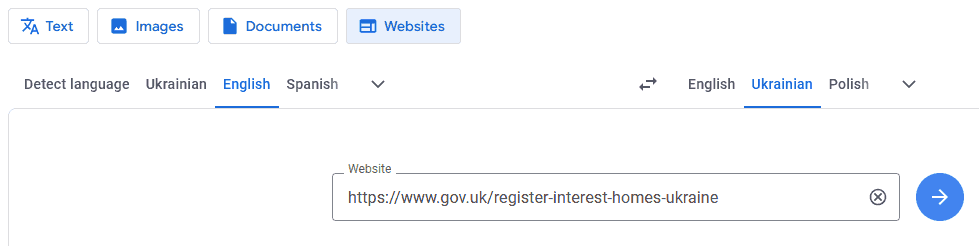
Google Translate will now show you the page translated into Ukrainian, or the language you chose in Step 4 above.
Example of a Web Page Translated Into Ukrainian
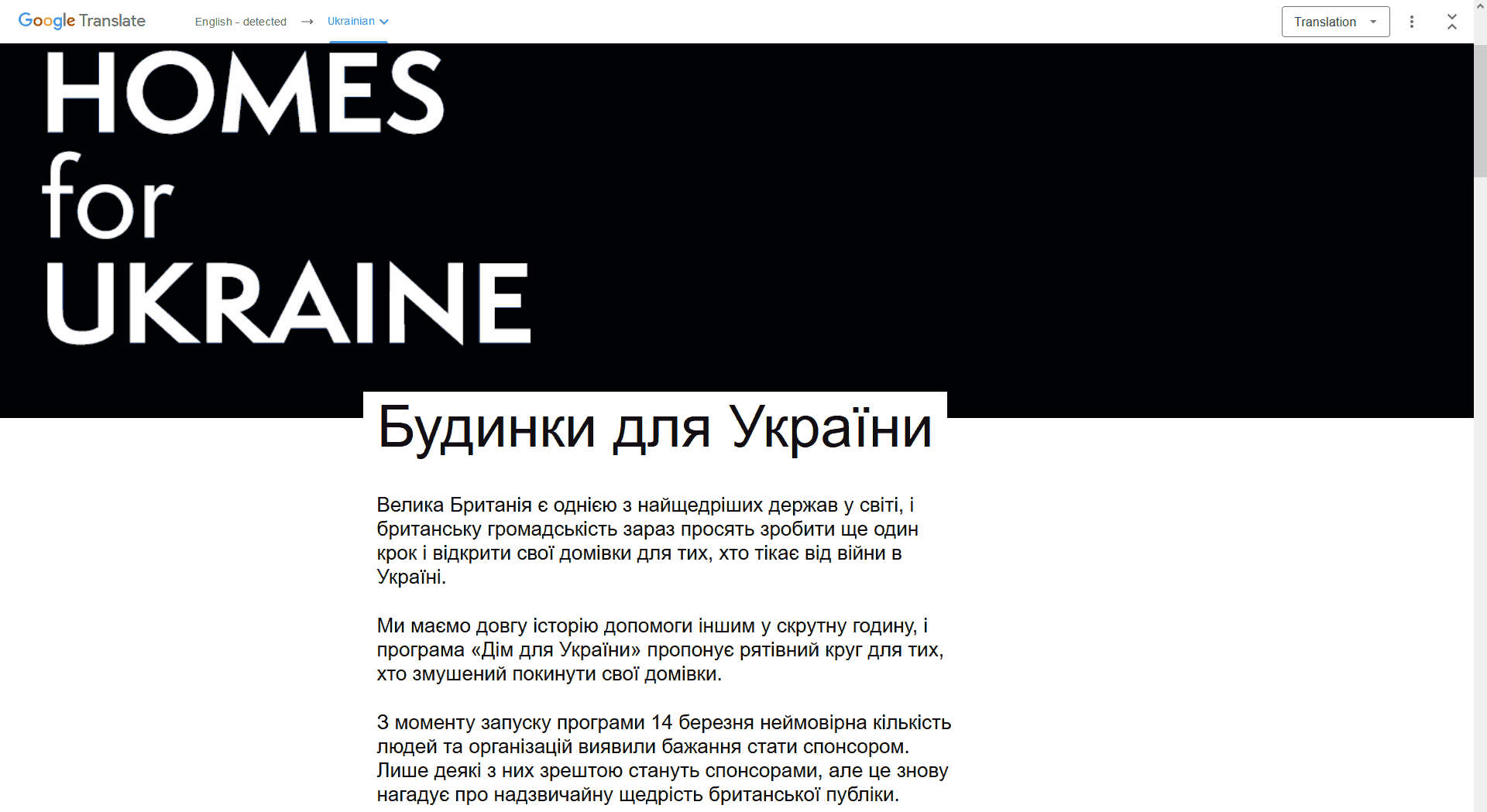
Once you are on the translated page, you can follow any links, and Google Translate will continue to show all pages you follow translated into Ukrainian.
Please note that Google Translate cannot translate words that are published as images rather than text. In this example, the words Homes for Ukraine remain in English because they were published as an image.
Important Points To Note
Google Translate records your IP* address every time you use the service. If you use Google Translate too many times, Google may lock you out of the service and show you this error:
*IP address, otherwise known as an Internet Protocol address.
Example of the error you may encounter
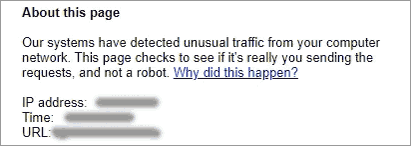
For accessibility purposes, the text in the above image is transcribed below:
About this page. Our systems have detected unusual traffic from your computer network. This page checks to see if it’s really you sending the requests and not a robot. Why did this happen? IP address: redacted. Time: redacted. URL: redacted.
As far as I know, there is no workaround for this. The only thing you can do is wait before trying again. I have had to wait around 10 minutes before the service starts working again.
Please bear in mind that Google Translate is a computerised translation service. This means that the translated page you see may not always convey the original meaning intended by the author.
You can also translate some file types using Google Translate
The Google Translate service allows you to upload documents for translation with the following file extensions:
.docx, .pdf, .pptx, or .xlsx.
To use this service, select the Documents tab once you are on the Google Translate page. Then follow the instructions to upload your document and download the translated version.
Subscribe to future posts on this website by email. No spam, just an email when a new post is published. View the posts.
See my explainer titled “What is Substack“.
Posts in Computers and Internet. View all in this subject.

How The i-Telex System Works

The Three Tees Agency: The 2026 Reunion

Operation Azalea: The Night Poland Lost Its Telex and Phone Connections
